How can you move objects anywhere you want?
In build mode you may want to place objects (like furniture or windows) in places that the grid won’t allow. To do this activate the cheat console, type in “bb.moveobjects on”, and select the object you’d like to place and you’ll find that you can put it anywhere inside your lot.
Build Mode – Items Cheats
| Cheats and Codes | Effect |
| bb.ignoregameplayunlocksentitlement | unlocks special items in the building mode |
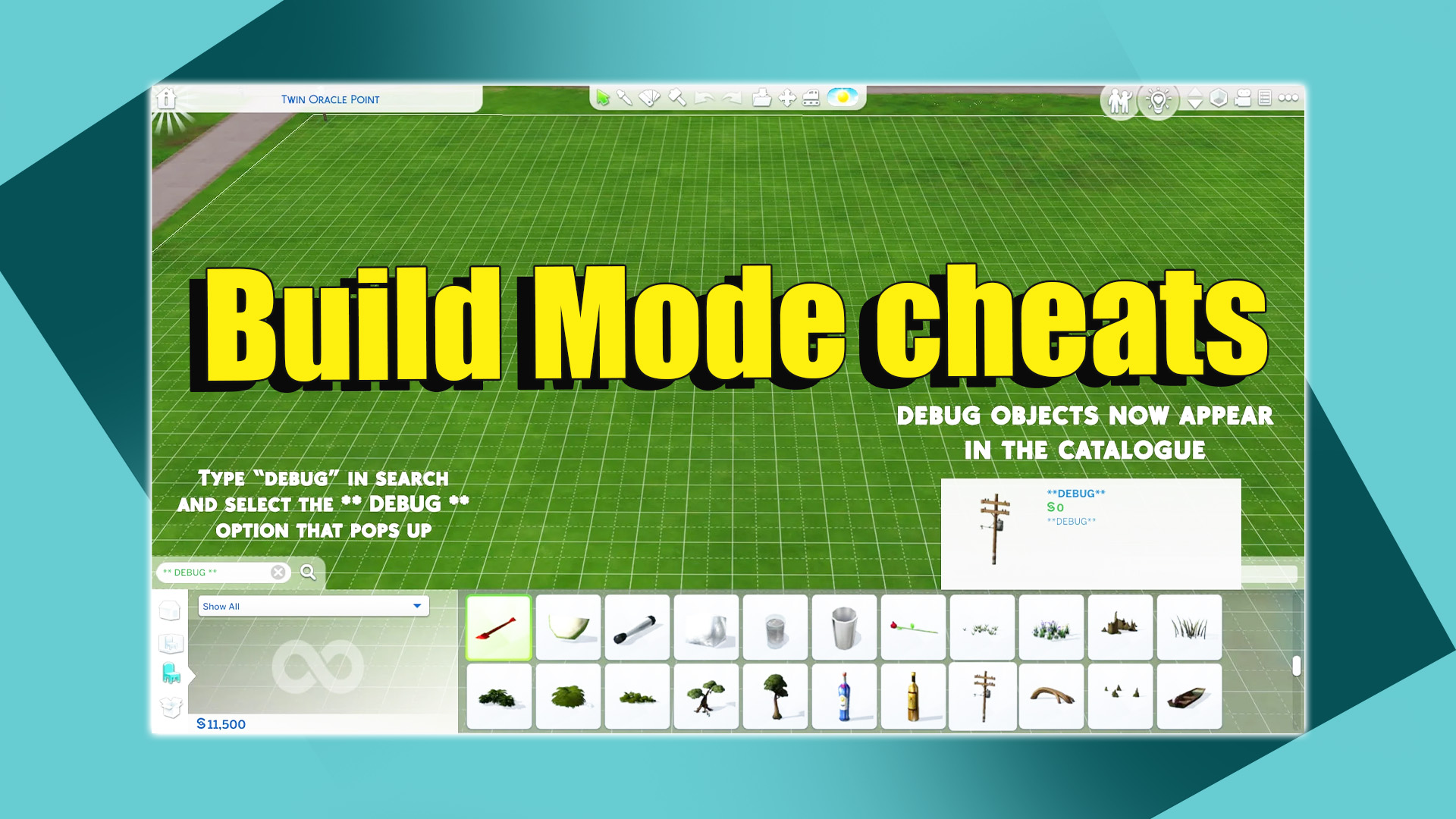
| bb.showhiddenobjects | shows items that you usually don’t have access to |
| bb.enablefreebuild | build items anywhere you want |
| bb.moveobjects on | moves objects anywhere you want |
Get to Work Cheats – The Sims 4
The Addictive High Of Breaking The Build Grid
Every builder knows the exact moment their innocence is lost: discovering bb.moveobjects on and the magic of holding down the Alt key. Up until that point, you live inside EA’s rigid grid system. Chairs must sit three polite tiles away from tables, potted plants refuse to snuggle into room corners, and your living rooms end up looking like sterile furniture showrooms. Tapping in the free placement command completely shatters those boundaries and turns you into an unstoppable interior architect.
The sudden creative freedom is intoxicating. You can cluster five different leafy plants into a single terracotta planter, slide a cozy armchair right up against a stone hearth, and tuck books casually under a nightstand. Instead of looking like a computer generated house, your builds suddenly develop warmth, personality, and genuine lived-in clutter. You find yourself spending three real-life hours decorating a single kitchen counter, lovingly placing cutting boards, vintage teapots, and scattered spice jars until your screen looks like a cozy home decor magazine.
There is also an art to the famous desk clutter trick. In standard play, putting a pencil holder or a mug on a study desk automatically snaps the item to the center of the surface. With free placement enabled, you simply slide the desk away, position your notebooks and coffee cups at the exact custom angle you want while holding the Alt key, and then slide the desk right back underneath. That level of micro-decorating turns ordinary suburban bedrooms into breathtaking showpieces that feel authentic and deeply personal.
Floating Teapots And The Route Failure Curse
Of course, any simmer who has ever pushed moveobjects to its limits knows the dark side of free placement: the dreaded live mode route failure. You spend an entire weekend building what you believe is an architectural masterpiece. You step back, admire the layered rugs, custom shelving, and decorative clutter, and finally hit Play to move your family in. Your hungry Sim walks into the kitchen, takes one step toward the refrigerator, and immediately freezes.
Then comes the arm waving. Your Sim stomps their feet, looks directly into the camera, and shouts in frustrated Simlish with a red route bubble hovering above their head. It turns out that a tiny decorative garlic clove was clipping half an inch into the refrigerator hitbox, rendering the entire fridge completely unusable. I once had Bob Pancakes stand in a hallway sobbing for two in-game hours because an off-grid coat rack made him think the bathroom door was entirely blocked. The comedy of watching Sims completely baffled by everyday decorative items is an unavoidable part of the builder journey.
Visiting townies fall victim to these decorative traps just as easily. During a Winterfest party at my cluttered cottage, Father Winter squeezed past a decorated holiday pine tree and got wedged firmly between an off-grid bookshelf and an accent armchair. He spent four hours standing next to the fireplace waving gifts in the air, unable to reach the living room sofa because a decorative stack of firewood was blocking his path. Watching unscripted pathing mishaps unfold is half the fun of testing custom builds.
Mastering Object Elevation Without Breaking Live Mode
Learning how to elevate and scale objects using the bracket keys and numbers nine and zero takes your builds to an entirely different dimension. You can shrink down oversized clutter items that originally looked ridiculous on small tables, or scale up a decorative crystal into a dramatic garden sculpture. Elevating items lets you place custom shelves anywhere on a wall without being locked into standard shelf heights.
You can even sink decorative boulders into the terrain to build natural stone ponds or raise flower pots to sit on porch railings. The key to avoiding gameplay disasters is playtesting as you build. Whenever I assemble an elaborate elevated display or a tight cluttered vanity, I immediately drop a test Sim onto the lot and instruct them to use every nearby interactive piece. Can they sit in the chair? Can they wash their hands in the sink without clipping through a floating towel rack? Catching pathing hiccups early saves you from heartbreaking renovation tear-downs later when your family is trying to live their daily lives.
Practical Tips For Beautiful Functional Clutter
To strike that sweet spot between gorgeous aesthetics and smooth gameplay, always leave clear primary walking lanes. Keep your main hallways at least two full tiles wide, and ensure clear, unblocked approach vectors for high-use objects like toilets, stoves, and double beds. You can go completely wild with clutter on sideboards, high shelves, and decorative corners, while keeping the main functional footprint clean.
Another great trick is pairing free placement with subtle lighting tweaks. Tucking small hidden saucer lights near off-grid nooks helps highlight all those layered decor pieces you worked so hard to position. Taking control of the build grid gives you the creative power to build spaces that feel authentic, quirky, and deeply personal, proving that the best homes in The Sims are the ones that bend the rules just enough to tell a great story.